

Blockbuster Studio - Cinematic Filmmaking For Minecraft
❤️ SUPPORT THE CREATOR
If you enjoy BlockBuster Studio and want to support its continued development, consider supporting me through the links below!
☕ Support Development on Ko-fi
▶️ Subscribe on YouTube
📸 Follow on Instagram
Every donation, subscription, follow, comment, and share helps support the development of BlockBuster Studio and future projects! 🙏
🎞️ MEDIA & SHOWCASE
Explore BlockBuster Studio in action! Check out screenshots, cinematic shots, feature showcases, and community creations to see what you can create with the Studio.
🎬 Turn your Minecraft world into a film set.
🎥 OFFICIAL VIDEO TUTORIAL
New to BlockBuster Studio? Watch the official video tutorial to learn how to use the Studio, record actors, control cameras, edit tracks, and create cinematic scenes.
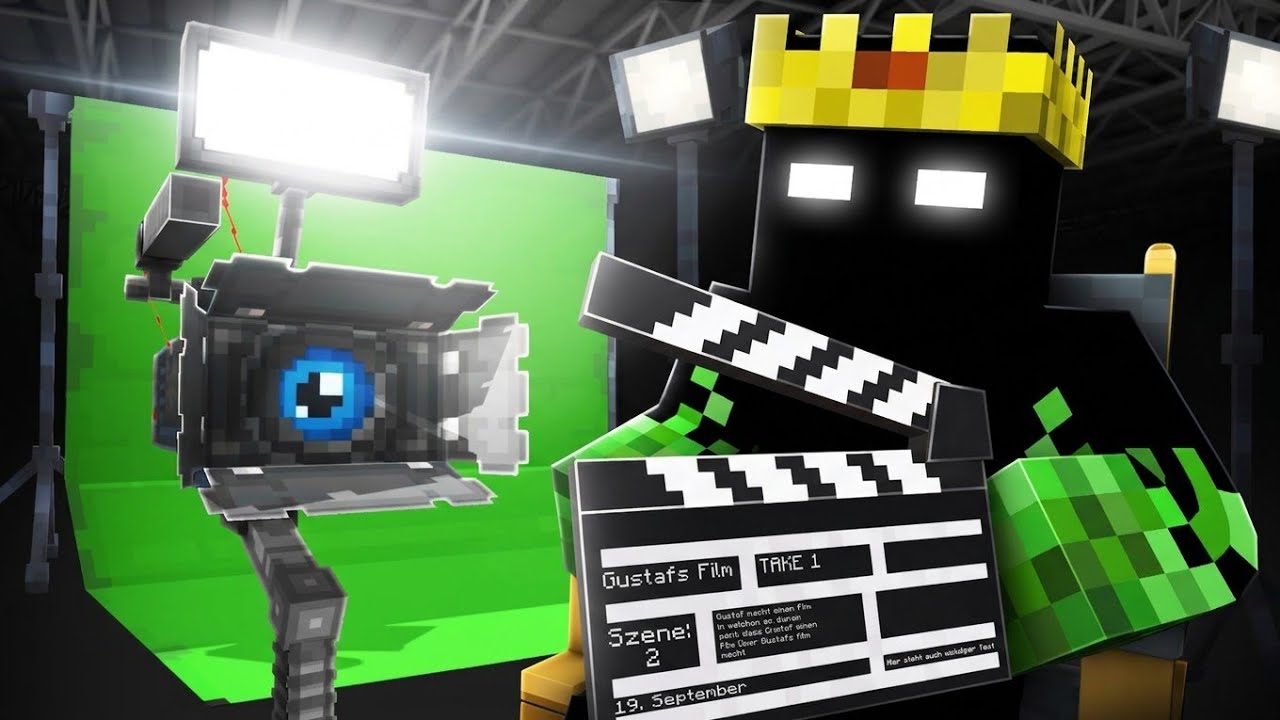
▶ Click the thumbnail above to watch the complete BlockBuster Studio tutorial on YouTube.
🎬 BlockBuster Studio
🎥 Cinematic Filmmaking for Minecraft Bedrock Edition
Turn any Minecraft world into your own film set.
BlockBuster Studio is a cinematography and actor-puppeteering add-on for Minecraft Bedrock Edition, designed for creators who want to make cinematic videos, machinimas, roleplays, trailers, replays, short films, and short-form content directly inside Minecraft.
Record actors, direct cameras, edit performances, build scenes, and control playback — all from an in-game filmmaking studio.
No external filmmaking tools required.
🎬 Created by PrimeGamingBoyzzYT
⚙️ REQUIREMENTS
| Requirement | Version |
|---|---|
| Minimum Engine Version | 1.21.0 |
@minecraft/server |
1.15.0 |
@minecraft/server-ui |
1.3.0 |
| Platform | Minecraft Bedrock Edition |
| Installation | Behavior Pack + Resource Pack |
🚀 GETTING STARTED
1. Install
Install both the Behavior Pack and Resource Pack into your Minecraft world.
2. Get the Studio Tools
Run:
/scriptevent bb:give
This gives you all 7 BlockBuster Studio tools.
3. Open the Studio
Use the Studio Controller or run:
/scriptevent bb:menu
4. Learn the Studio
Run:
/scriptevent bb:tutorial
for the guided walkthrough.
You can also use:
/scriptevent bb:help
for the command reference.
🎞️ RECORDING & PLAYBACK
Capture complete actor performances using a powerful multi-track recording system.
- Multi-track recording
- Create named tracks
- Resume existing recordings
- Non-destructive editing
- Automatic background autosave
- Full Undo / Redo
- Pause and resume recording
- Frame-accurate playback
- Adjustable playback speed
- Track-based scene production
- Actors remain dead when they die during a take
- Actors smoothly return to normal movement after a take
🎬 KEYFRAME SCRUBBER
Edit your recordings frame by frame for precise cinematic control.
- 🎯 Mob Transform Keyframes
- 🎭 Animation Keyframes
- 🛡️ Equipment Keyframes
- 💧 Liquid Placement Keyframes
- ✨ Particle Keyframes
- ⚡ Speed Ramp Keyframes
- 📷 Camera Cut Assignment
- 🔁 Particle Frame Ranges & Repeat Delays
- 📋 Full Keyframe List
- 🎞️ Apply Camera Cuts to Multiple Tracks
Animation controls support real actor animations from 84 vanilla Minecraft mobs.
📷 CAMERA STUDIO
Create cinematic shots using 80 camera attach presets designed around different filmmaking and short-form editing techniques.
🎥 Camera Categories
- 🎞️ Cinematic
- ⚡ Action
- 🔥 Viral
- ✨ Trendy
🎬 Cinematic Techniques
- Dolly Zoom
- Whip Zoom
- Whip Pan
- Arc / Orbit Shots
- Tracking Shots
- 360° Rotation
- Dutch Angle
- Boom-Up Reveal
- Handheld Camera Movement
- Reaction Snaps
🎛️ Camera Controls
- Camera preset search
- FOV smoothing
- Movement interpolation
- Favorites
- Shuffle Mode
- Camera Cuts
- Waypoint-based camera paths
All camera presets keep FOV within Minecraft's supported 30–110 range.
🎭 ACTOR STUDIO
Build and direct your own cast of Minecraft actors.
- Morph into any vanilla mob
- Support custom entities from other add-ons
- Actor scaling
- Spawn and remove actors
- Chroma key support
- Nametag visibility controls
- Actor Templates
- Actor Parenting with adjustable offsets
- Equipment Baker with 6-slot loadouts
Custom entities can be loaded by entering their entity identifier:
namespace:entity_id
👤 VIRAL PLAYER ENTITIES SUPPORT
BlockBuster Studio optionally supports the separate Viral Player Entities add-on.
It provides access to 20 creator-styled player actors for cinematic productions.
If the required add-on is not installed, BlockBuster Studio provides an in-game notice explaining what is required to enable the actors.
✂️ TIMELINE EDITOR
Edit your recorded performances directly inside Minecraft.
- Duplicate
- Merge
- Delay
- Speed
- Trim
- Reverse
- Loop
- Keyframe Editing
- Transform Editing
- Track Groups
- Loop Regions
- Undo / Redo
- Delete Track
Non-destructive editing keeps your original recordings safe for most operations.
🎬 SCENE BUILDER
Create named scenes from your recorded tracks.
Choose exactly which tracks belong to a scene and play back only those tracks.
Perfect for:
- 🎥 Cinematic sequences
- ⚔️ Battle scenes
- 🎭 Roleplays
- 🎞️ Multi-character performances
- 📺 Episodes and series
📡 LIVE DIRECTOR HUD
Monitor your production while recording or playing back a scene.
The Live Director HUD can display:
- Recording status
- Active track
- Actor count
- Playback state
- Current camera preset
The HUD can be enabled or disabled through Studio Settings.
🎛️ STUDIO DASHBOARD
All major filmmaking tools are organized inside one central Studio interface.
| Studio | Purpose |
|---|---|
| Project Manager | Manage recordings and tracks |
| Camera Studio | Direct cinematic cameras |
| Actor Studio | Manage and customize actors |
| Recording Studio | Record, resume, and stop takes |
| Timeline Editor | Edit recorded performances |
| Playback Studio | Control playback and seeking |
| Scene Builder | Create and organize scenes |
| Live Director HUD | Monitor production status |
| Favorites Manager | Manage favorite camera presets |
| Quick Access | Quickly access common tools |
| Tutorial & Help | Learn the Studio |
| Command Center | Browse available commands |
| Studio Settings | Configure Studio options |
🎮 7 STUDIO TOOLS
🎛️ Studio Controller — Open the Studio Dashboard.
🔴 REC — Start and control recordings.
▶️ PLAY — Start playback and select tracks.
⏹️ STOP — Stop active recording or playback.
✂️ Timeline Editor — Edit recorded tracks.
📷 Attach Cam — Quickly attach cinematic cameras.
🎯 Keyframe Scrubber — Edit individual frames and keyframes.
⭐ FAVORITES & QUICK ACCESS
Save your favorite camera presets and access frequently used filmmaking controls without navigating through multiple menus.
Favorites can be used across camera selection and Shuffle modes.
Quick Access provides shortcuts for common recording, playback, camera, morph, and speed controls.
🤖 AI ASSIST
BlockBuster Studio includes optional AI Assist tips that provide short, context-sensitive guidance throughout the Studio interface.
AI Assist can be enabled or disabled from Studio Settings.
⚠️ KNOWN LIMITATIONS
BlockBuster Studio works within the capabilities of the Minecraft Bedrock Script API.
- Custom persistent HUD buttons and PC/console shortcut keys are not currently supported by the available Bedrock APIs.
- Player limb posing is not currently available through the Script API.
- The Live Director HUD uses Minecraft's world-wide sidebar scoreboard and therefore affects everyone in the world.
- Studio Settings only exposes options backed by actual functionality.
📜 COMMAND CENTER
All commands use:
/scriptevent bb:<command>
bb:give— Give all Studio toolsbb:rec— Start / stop recordingbb:play— Play tracksbb:pause— Pause recording or playbackbb:resume— Resume recording or playbackbb:stop— Stop recording or playbackbb:menu— Open Studio Dashboardbb:attach <id> [mode]— Attach a camerabb:detach— Detach the camerabb:cam preview— Preview a camera pathbb:cam stop— Stop a camera path- ¨C22C — Show the command list
- ¨C23C — Start the guided tutorial
- ¨C24C — View the in-game changelog
🎥 MADE FOR CREATORS
BlockBuster Studio is designed for creators who want to produce cinematic Minecraft content directly inside Bedrock Edition.
🎬 Machinimas • 🎭 Roleplays • ⚔️ Battle Replays • 🎞️ Cinematic Shorts • 📺 Series & Episodes • 🎥 Trailers • 📱 Short-form Videos
❤️ CREATED FOR THE BEDROCK COMMUNITY
BlockBuster Studio is developed by PrimeGamingBoyzzYT with the goal of bringing a powerful, accessible, and creator-focused filmmaking workflow to Minecraft Bedrock Edition.
🎬 Record. Direct. Edit. Create.
❤️ SUPPORT BLOCKBUSTER STUDIO
Your support helps keep development active and makes future features, improvements, and projects possible!
☕ Support on Ko-fi • ▶️ Subscribe on YouTube • 📸 Follow on Instagram
Every donation, subscription, follow, comment, and share means a lot! ❤️
Made with ❤️ for the Minecraft Bedrock filmmaking community.